
Two-factor authentication
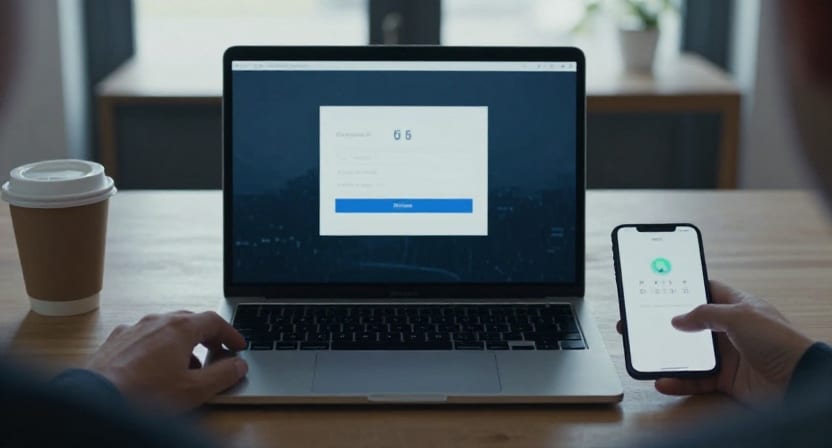
Every Seldeo account signs in with a passkey, and a passkey is already a strong factor: it is bound to your device and protected by your face, fingerprint, or screen lock. Unlike a password, it cannot be guessed, reused from another site's breach, or phished.
On top of that, you can add one optional second factor: a time-based code from an authenticator app (TOTP). This article covers what that adds, how to turn it on, and how to avoid locking yourself out.
Where to find it
Open Settings → Account → Account security. The Two-factor authentication section shows two tiles:
- Passkey — your sign-in method. Every account has at least one; this tile is where you manage them.
- Authenticator app — the optional second factor. The tile reads Off · tap to set up until you enable it, and Active · tap to manage afterwards.
Set up the authenticator app
You'll need any TOTP-compatible app: Google Authenticator, 1Password, Authy, Bitwarden, and Microsoft Authenticator all work.
- Go to Settings → Account → Account security and tap Authenticator app.
- The app shows a QR code. Open your authenticator app, choose "add account," and scan it.
- Enter the six-digit code your authenticator app shows, to prove the pairing worked.
- Save the ten backup codes we show you at the end. Each backup code works exactly once. Put them in a password manager's secure notes, print them, or write them down and keep them offline — anywhere that isn't only on the phone you'd be trying to recover.
You can also set this up during sign-up: the authenticator step is offered at the end of account creation, with a Maybe later option if you'd rather skip it.
What we deliberately don't support
- SMS codes as a second factor. SMS is vulnerable to SIM-swap attacks, and the phone number on your account is contact information, not a sign-in method. For the reasoning, see the guide Choosing a two-factor method.
- Passwords as a fallback. There is no password on a Seldeo account, so there is no weaker path for an attacker to downgrade to.
If you lose the authenticator app
Losing the phone with your authenticator app is the most common 2FA problem, and it's why the backup codes matter:
- Use a backup code where the six-digit code is requested. Each one works once.
- Out of backup codes? Go through account recovery, which verifies you with your recovery email plus a recovery code or your security questions.
The rest of the Account security screen
While you're there, the same screen also holds:
- Phone number — the contact number verified at sign-up.
- Security questions — set at sign-up, used only during account recovery. You can update them here.
- Recovery email — set and verified at sign-up, used to reach you during recovery.
- Sign out everywhere — ends every active session on every device at once. Use it if a device is lost or you suspect someone else has access.
Related help
- Passkeys on Seldeo
- Your recovery codes
- Recovering a lost account
- Independent background: Choosing a two-factor method